For anyone using VMware Workstation for testing or maybe a home lab, I put together this guide while doing my initial testing running vCenter 8 on VMware Workstation.
Take it step by step and follow the guide for a successful deployment.
First, there is a known issue with the VCSA OVA when deploying onto Workstation, to workaround this issue we need convert the OVA to an OVA and make some amendments.
Mount the ISO and copy the contents to a directory where we will make the changes.
Navigate into the VCSA directory and use the bundled OVF tool to convert the OVA to an OVF:
“ovftool PATHTOEXTRACTED.ova PATHTOSAVECONVERTEDOVF.ovf”
Now we need to delete the .mf file that will have been created with the OVF extracted files. We need to do this as it causes file validation to fail due to the next change.
Edit the OVF file with a text editor (I am using Notepad)

Amend the false value to true where highlighted: ovf:userConfigurable=”true“
We can now use the OVF to deploy the VCSA on VMware Workstation.
Next, we will walk through the import process, double click the OVF to get started.
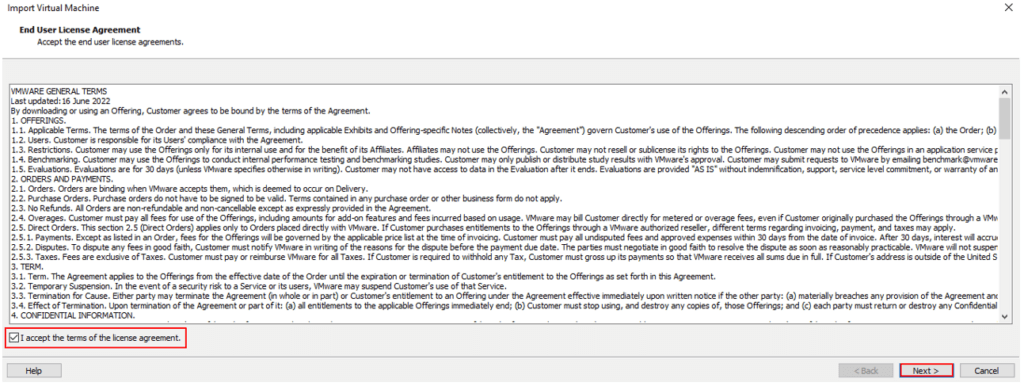
Accept the terms and click next:
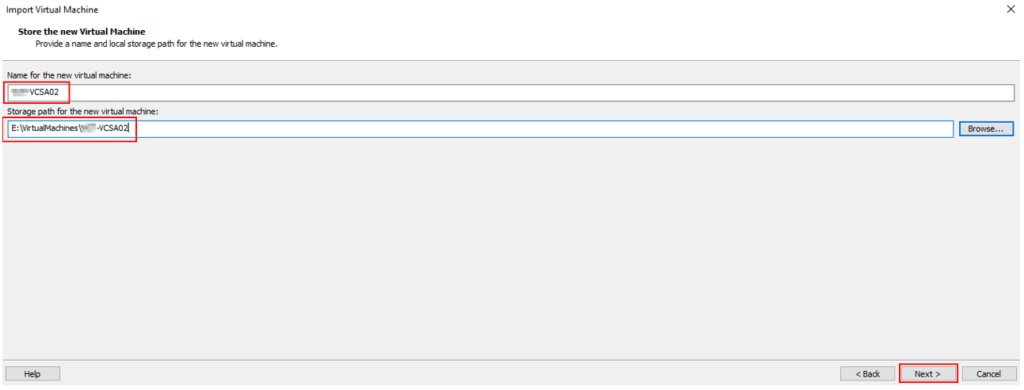
Enter a name for the virtual machine and set the path to store the virtual machine files and click next:
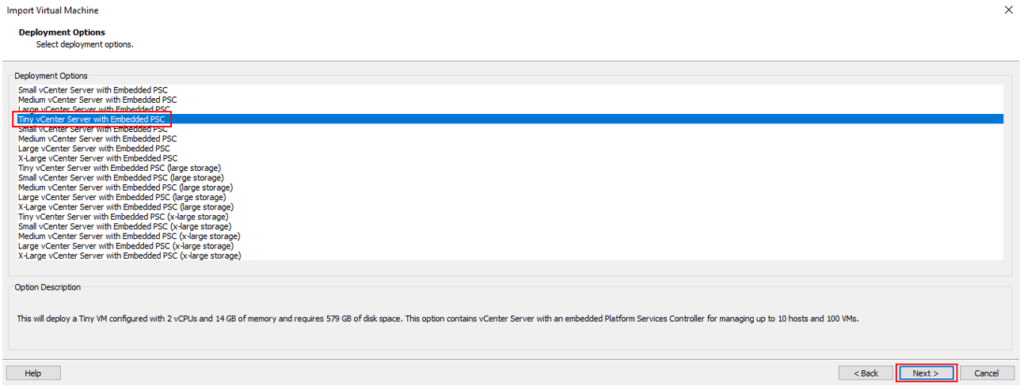
As this is a LAB environment a Tiny deployment is sufficient, choose a selection that meets your needs and click next:
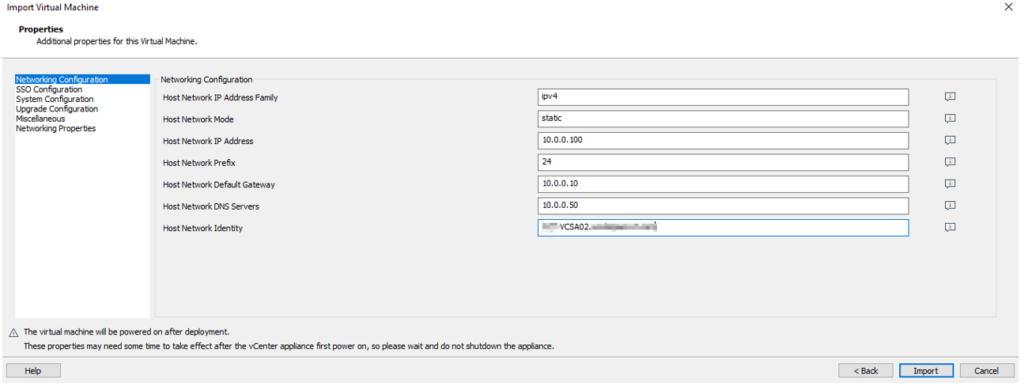
Now we need to specify the network configuration for the VCSA, one thing to mention here is to ensure DNS has already been populated with a host entry in both the forward and reverse DNS zones, if you miss this step the deployment will fail. See the configuration I entered below:
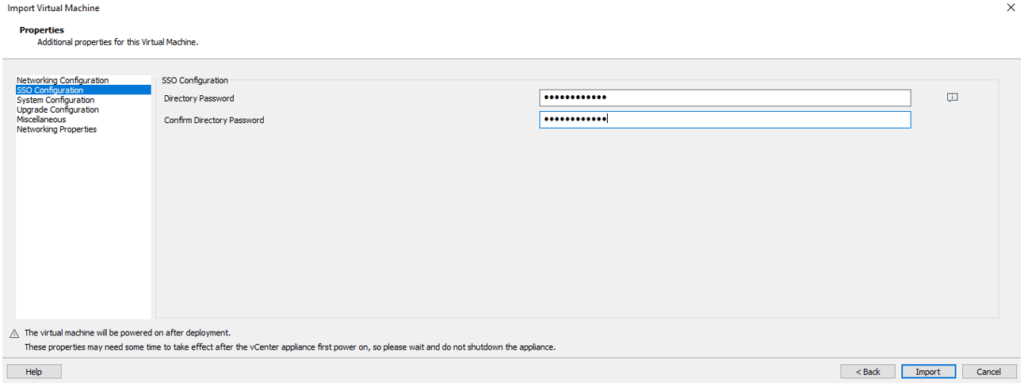
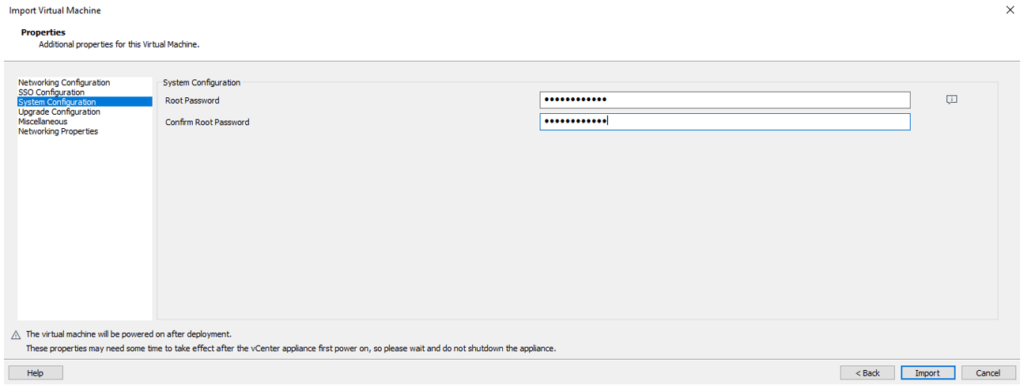
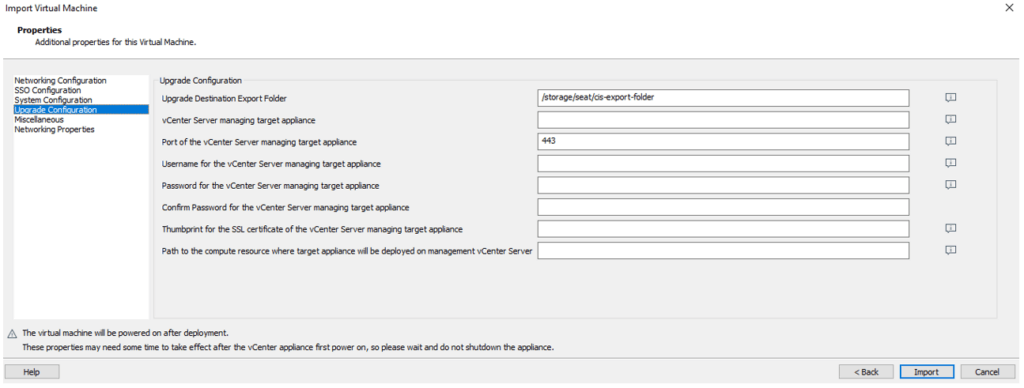
As this is a new deployment, the upgrade section will be left unchanged.
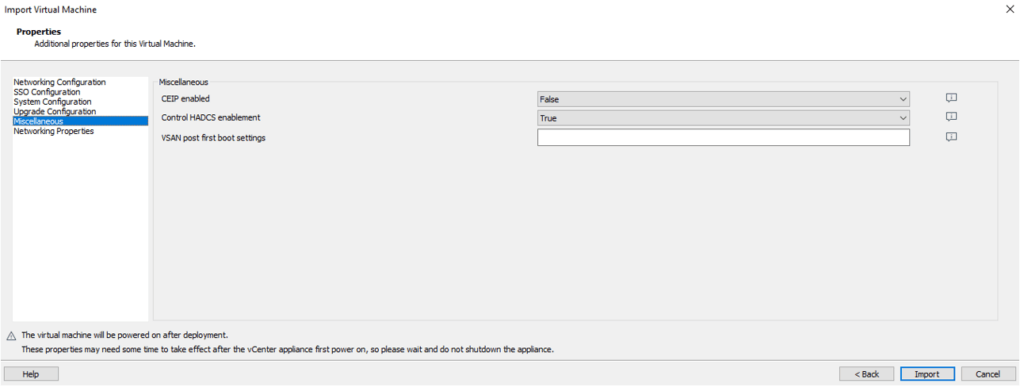
With the configuration complete we can now click Import for import process to begin:
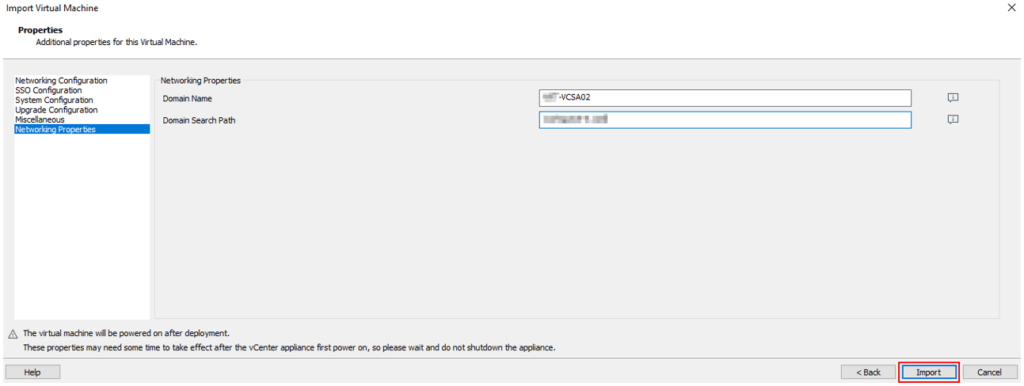
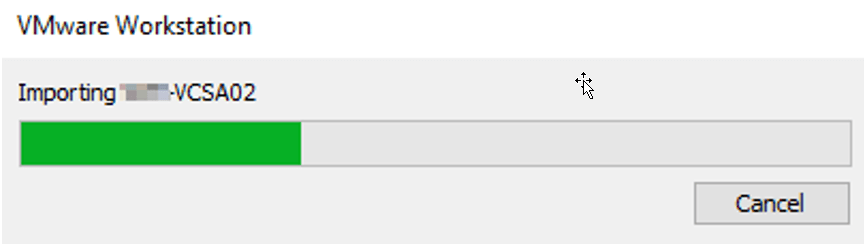
Once the import is finished the virtual machine will start automatically, be sure to change the network adapter to the correct network/VLAN if required.
Once the VCSA has finished starting up you can browse to the web GUI to complete the installation.
The VM console will display the URL to connect to, like this:

Navigate to the web GUI, authenticate with the root password set during the import stage:

Once authenticated, hit Setup:
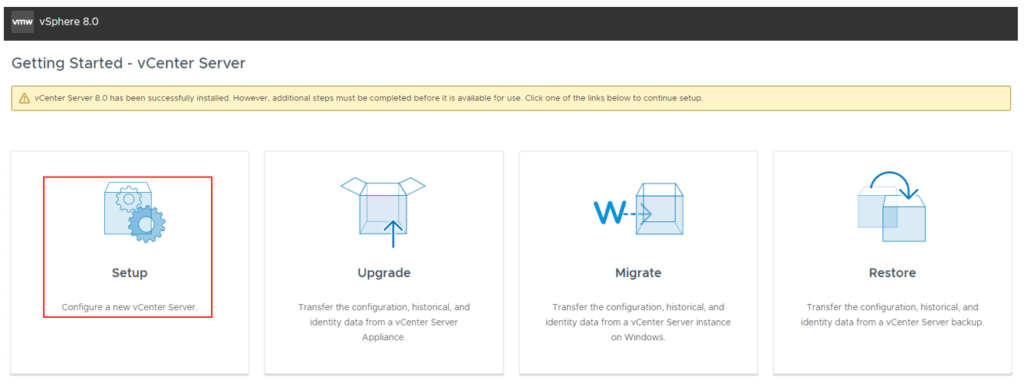
Click next to the introduction and we will reach stage 2 of the installation:

Stage 2
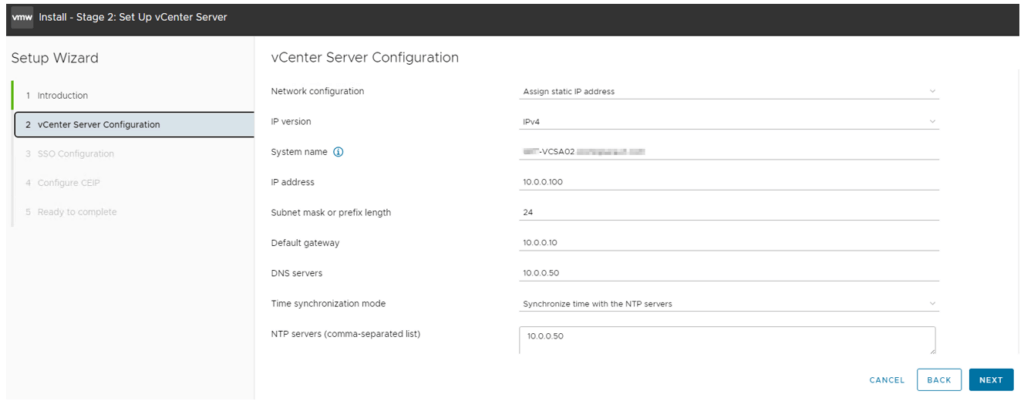
Verify the details are correct, they should have been retrieved from the Stage 1 configuration. I have in this case enabled NTP and set an appropriate IP address. I have also enabled SSH. Click next to continue:
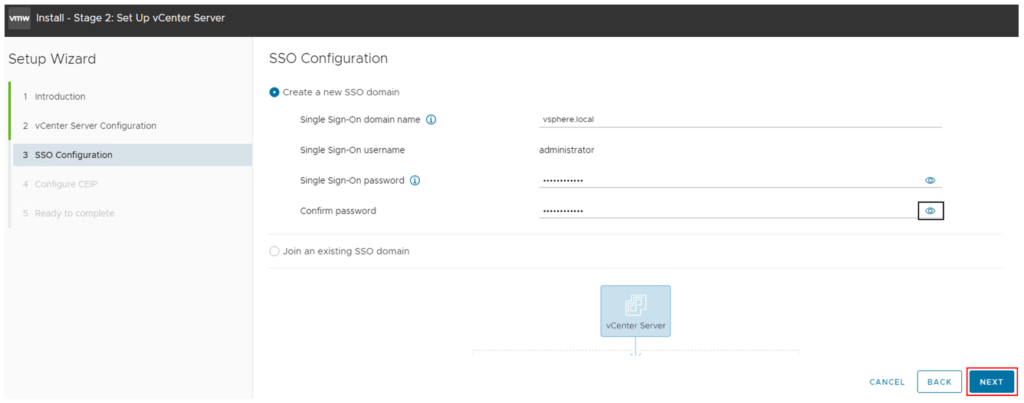
Now we need to create or join an existing SSO domain, in my case I am creating a new SSO domain, specify the SSO domain name and password as required then click next:
Now we need to create or join an existing SSO domain, in my case I am creating a new SSO domain, specify the SSO domain name and password as required then click next:
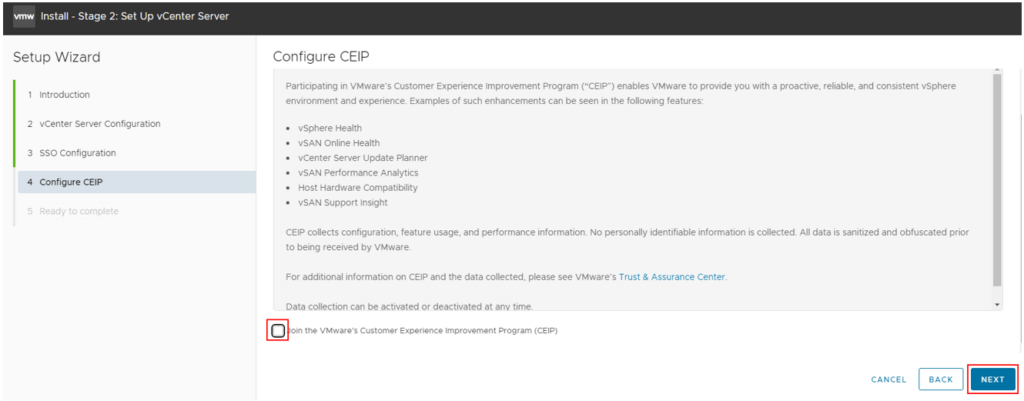
Check or uncheck the box to join the CEIP program, I have deselected for this lab setup, click next:
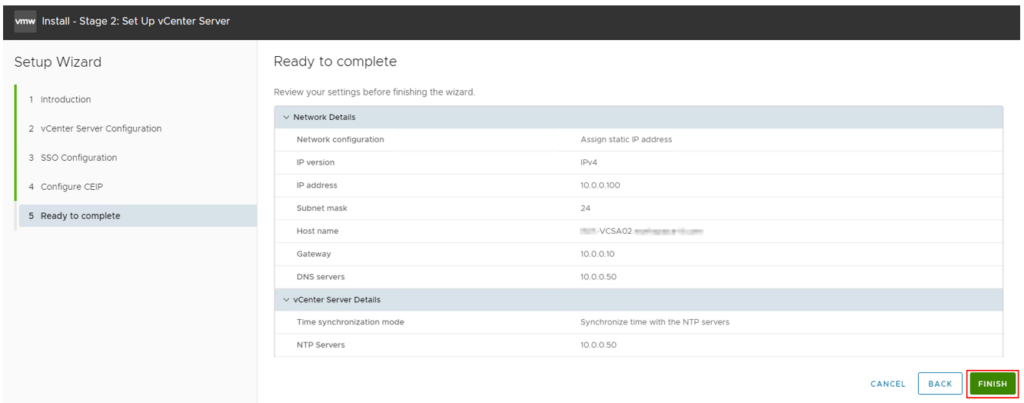
Give the configuration a final check on the summary screen and click Finish to start the stage 2 configuration:
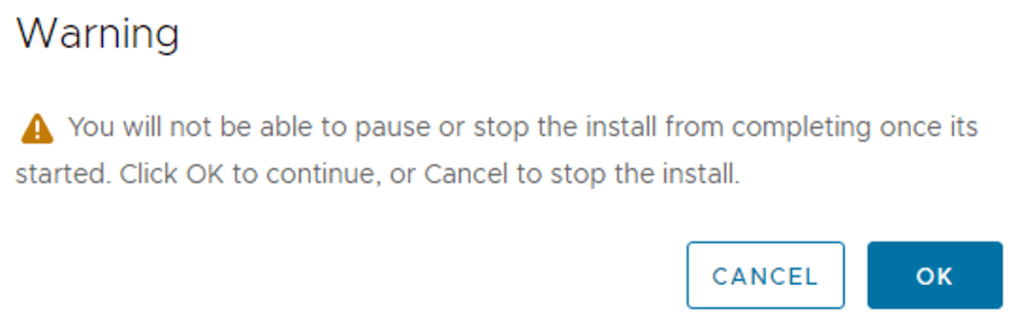
Click ok to the prompt:
The process will now start the final stage of the configuration:

This can take a bit of time but once finished you will see a complete message and a new URL/Port that can be used to manage the vCenter, click close and the vCenter deployment is complete.
Now you can access the web GUI and manage the vCenter:

Thats it! You have reached the end of the guide and should have a fully operational vCenter 8 virtual machine running on your VMware Workstation installation.